
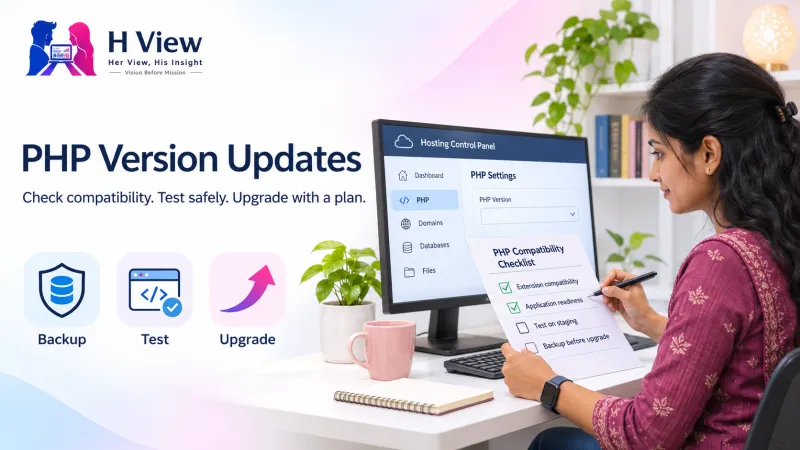
What Is a PHP Version Update, and Why Does It Matter for an Existing Website?
Learn what changes during a PHP version update, what can break, and how to test the tasks your website depends on before switching.
A PHP version update changes the software your server uses to run a PHP website. It can bring security fixes and other improvements, but it can also expose code that relied on older behaviour. Before changing the version, check what your site needs, test the upgrade on a copy, and know how you would restore service if the test misses something.
What actually changes when you update PHP?
Think of a contact page. Your browser displays a form, but PHP on the server may check what the visitor entered, record the enquiry and hand a message to an email service. When you change the PHP version, the page still looks like the same page and the form may still open normally. What changes is the program doing the work behind it. A problem may only appear when someone submits the form.
Updating PHP is separate from updating WordPress, a theme, a plugin or a custom application. Those updates change the code your site runs; the PHP update changes the environment that runs that code. If you make both changes at once and something breaks, it can be difficult to work out which change caused it. A plan that isolates changes gives you a clearer diagnosis and a more useful rollback decision.
Why can an older site stop working?
Code that ran on the previous version may call a function that has changed or been removed. An older plugin may depend on a library that cannot run on the new version. Another common issue is a missing extension: the old setup may have had the database, image processing or internationalisation extension your site expects, while the new one does not. Switching versions does not necessarily carry over every setting or extension.
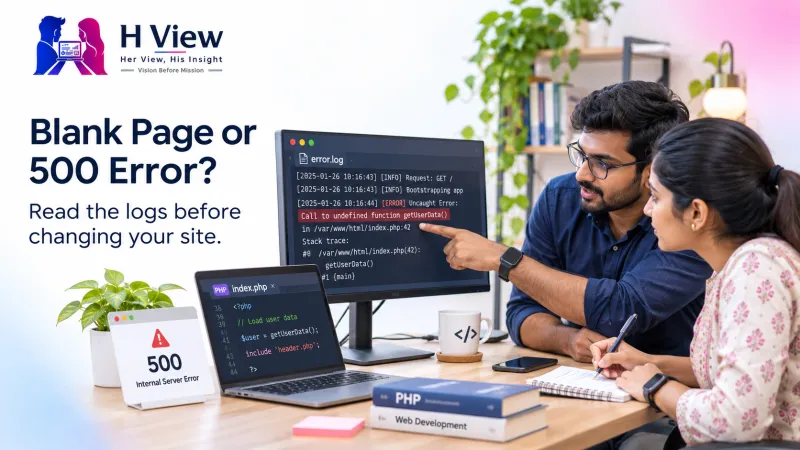
The result is not always a blank page. You might find an editor that opens but cannot save, an invoice that downloads without the correct formatting or a background task that no longer runs. If a page returns an error, record when it started and what action triggers it. That evidence makes the server log much more useful than repeatedly trying the same action or switching off plugins at random.
| What you see | What to check first |
|---|---|
| The homepage opens, but enquiries stop arriving | Submit a test enquiry and check the confirmation, stored record and inbox separately. |
| Only image uploads fail | Check the error log, the image extension and the upload limits for the new environment. |
| Scheduled jobs stop while public pages work | Check which PHP executable the job uses and whether it runs with the expected settings. |
| Several pages return a server error | Check the first relevant log entry for a missing dependency, incompatible function or extension. |
 Also readHow a PHP Website Talks to Its Database, and Why the Connection Can Fail→
How do you choose a version for an existing website?
Start by recording the version serving the site today. A hosting control panel may show one value for a domain while a command run in a terminal uses a different version. Ask which version serves web requests and which one your scheduled tasks use. On a custom site, check the application's package requirements; on WordPress, check the core version and the plugins and themes your business depends on.
Then compare the options offered by your host with the PHP support schedule. Pick a supported version that the site and its key dependencies can run. If an abandoned plugin is the only reason you cannot move, plan how to replace it or remove the dependency. Choosing the newest option blindly can create a service interruption, while leaving the site on an unsupported version indefinitely leaves a problem unresolved.
What should you test before switching the live site?
Use a staging copy with the same code, relevant settings and extensions. Keep it private and disable or redirect anything that could send real mail, charge a customer, or sync changes to a live service. Check the main paths customers and staff use: sign in, search, submit a form, upload a file and save an edit. If the site takes payments, use your payment provider's test mode rather than a real order.
Make a backup that includes both files and the database, and check how you would restore it before you need it. Write down the old PHP version, the extension list and any settings you intend to change. Keep a short checklist of the expected outcomes and note who will test them after the switch. A checklist matters most when someone else has to take over while an error is unfolding.
A practical example: the form looked fine
Imagine a local training centre where prospective students send enquiries through one contact form. On staging, the team changes PHP and checks the homepage and course pages. Everything looks fine until a staff member submits the form. A confirmation appears, but nothing reaches the test inbox. The team checks whether an enquiry was stored, then checks the mail logs rather than assuming the visitor's submission was lost.
That test reveals a failure in the mail step. The team fixes the dependency on staging and repeats the whole enquiry path, including the inbox check. For this site, the meaningful outcome is that someone receives a usable enquiry. The example also shows why each site needs its own checklist: a gallery, an online shop and a course site can all break in different places after the same PHP switch.
Her View
Start the upgrade conversation with the business task that would hurt most to lose. For an enquiry site, check the enquiry path first; for a site that handles appointments, make and verify a test booking. That gives the owner a clear way to judge the result without having to read a server log.
 Also readPHP Website Showing a Blank Page or 500 Error? Where to Start→
His Insight
Treat web requests and background jobs as separate checks. A healthy homepage tells you very little about the PHP executable used by scheduled tasks. Record both environments so that if work stops quietly after the change, you know where to compare settings.
H View Verdict
Upgrade to a supported PHP version once you can show that the important tasks work on a representative copy and you know how to restore service. If one dependency blocks the move, identify it and plan the smallest fix. H View offers plugin, theme and PHP compatibility support if you need help finding that blocker.
Frequently asked questions
Will a PHP update make my site faster?
It can change performance, but the result depends on your code, host, cache and traffic. Measure the same pages and tasks before and after the change if speed is part of your goal.
Can I switch back if the site breaks?
Some hosts let you switch back if they still offer the old version. If you also changed code or data, switching the runtime back may not undo those changes. Plan recovery for each part you touch.
Should I show PHP errors to visitors while testing?
Use logs on the live site instead. Public error output can reveal file paths and other implementation details; use a private staging environment for visible debugging.
Where can I check version-specific changes?
Start with PHP's migration guide for the version you're moving to. For example, the PHP 8.3 migration guide separates changes into sections so you can check the ones your site uses.
H View stories follow our editorial policy. Spotted an error? Tell us and we will correct it.
Rate this article
One tap is enough. No comment needed.
Was this article helpful?
Your answer goes straight to our editors.








Comments0
No comments yet. Start the conversation.