
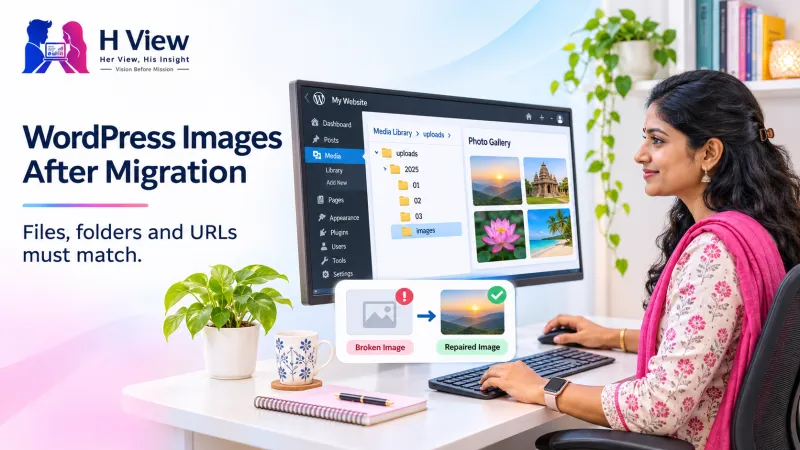
Where WordPress Stores Images, and Why They Can Go Missing After a Migration
WordPress keeps image files in one place and image details in another. How the uploads folder and the database work together, and why a migration can leave images missing even when the files exist.
WordPress stores image files in the wp-content/uploads folder and stores information about those images, including their addresses, in the database. WordPress images go missing after a migration when those two parts stop matching: the files did not move, the database still points to the old address, or the new server cannot serve the files.
The page loads, the text is fine, but every picture shows a broken icon. Knowing how WordPress keeps track of images explains why this happens so often after a move.
Where does WordPress keep images?
| Part | What it holds |
|---|---|
| Uploads folder | The actual image files, usually in wp-content/uploads/YYYY/MM/, plus resized copies WordPress creates for thumbnails and other sizes |
| Database | A record for each media item (title, alt text, file path and size details) and the image addresses written inside posts and pages |
| Page builders and plugins | Their own saved settings, which may also contain full image addresses |
The year-and-month folders come from a setting described in WordPress's Media Settings documentation: "Organize my uploads into month- and year-based folders", which is on by default.
Why can images break after a migration?
- The uploads folder was not copied completely, often because it was too large for the migration tool or a time limit was reached.
- Old addresses remain in the database. Posts still point to
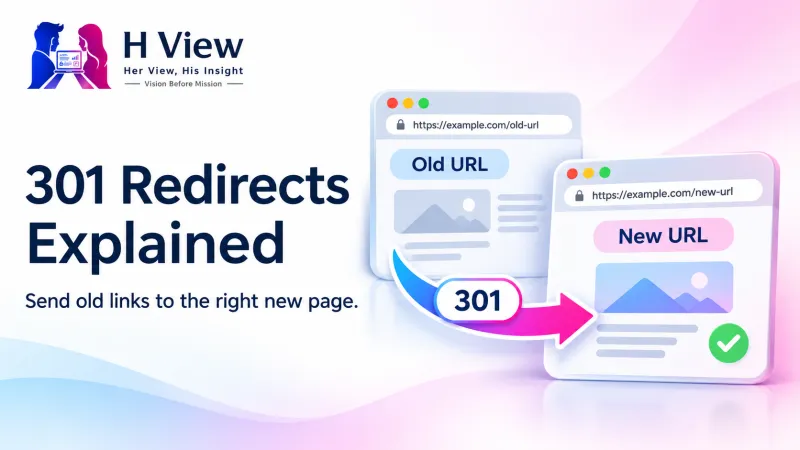
http://old-domain.com/wp-content/uploads/...after a domain or HTTPS change. - File permissions on the new server stop the web server from reading the files.
- Case or path differences: some servers treat
Photo.JPGandphoto.jpgas different files. - A CDN or image optimisation plugin still points to the old location or an old cache.
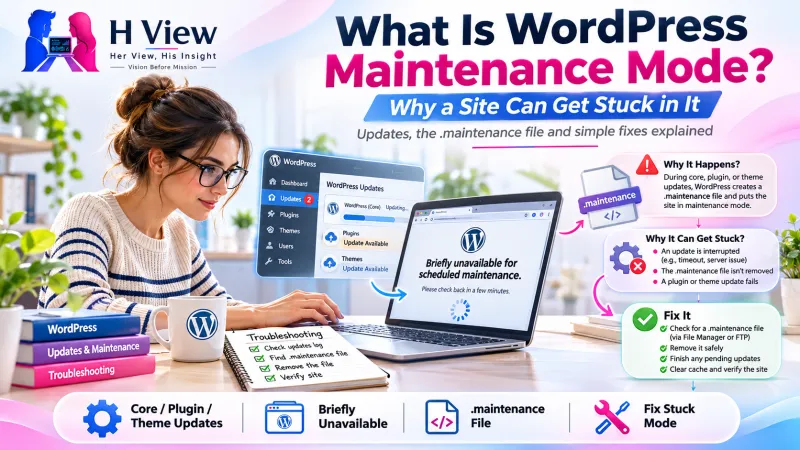 Also readWhat Is WordPress Maintenance Mode, and Why Can a Site Get Stuck in It?→
Why is a careful search-and-replace important?
Many WordPress settings are stored in a special "serialized" format that records the length of each piece of text. A simple find-and-replace on the raw database can change the text but not the recorded length, which can break settings and widgets. Tools designed for WordPress, such as the WP-CLI search-replace command, handle this format properly. Running a "dry run" first shows what would change before anything is changed.
What helps someone diagnose missing images?
- Right-click a broken image and copy its address. Is it the old domain, the new domain, or a wrong path?
- Check whether the file exists in the uploads folder on the new server.
- Note whether all images are broken or only some, such as older ones or those added by a page builder.
- Record what changed: domain, HTTPS, hosting, CDN or optimisation plugin.
These details usually point straight to which of the two parts, files or database, is out of step.
How can a migration avoid this?
- Take a full backup of files and database before starting.
- Confirm the uploads folder size and copy it completely.
- Update addresses with a WordPress-aware tool, using a dry run first.
- Clear caches and check a sample of old and new posts, product pages and builder pages.
- Keep the old site available for a short period in case anything was missed.
If the move also involved a new host or domain, our guide to domain, hosting and DNS problems explains how those pieces fit together.
Her View / His Insight
Her View: Broken images make a trustworthy business look abandoned. Even when the content is fine, visitors judge quickly by what they see.
His Insight: Always ask two questions: does the file exist, and does the address point to it? Almost every missing-image problem is one or the other.
Frequently asked questions
The images are in the Media Library, so why are they broken on pages?
The Media Library shows the database records. Pages may still contain old addresses written into the content, or the files themselves may be missing on the server.
Can I just re-upload the images?
That creates new copies with new addresses, but old posts would still point to the missing ones. Fixing the files and addresses is usually cleaner.
Does a migration plugin always move images?
Usually, but large uploads folders, server limits or exclusions can leave gaps. Always check a sample of images after moving.
Planning a move or fixing one?
HView's Digital Solutions team can plan or repair WordPress migrations with backups and checks. See also hosting, migration and SSL support.
References

H View stories follow our editorial policy. Spotted an error? Tell us and we will correct it.
Rate this article
One tap is enough. No comment needed.
Was this article helpful?
Your answer goes straight to our editors.








Comments0
No comments yet. Start the conversation.