
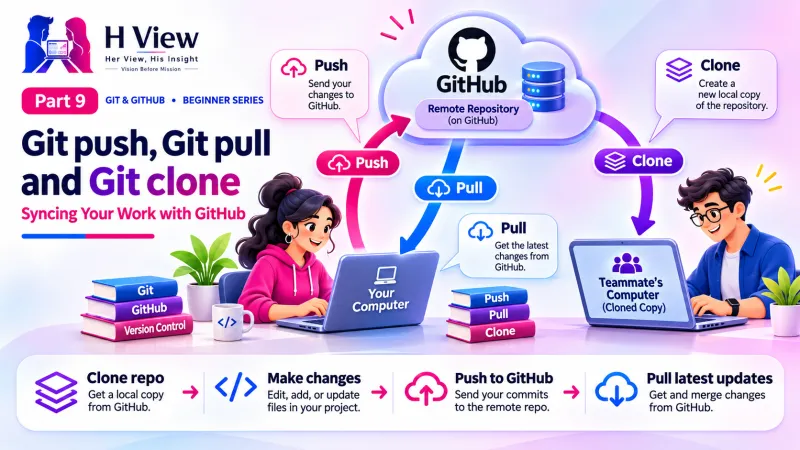
Git push, Git pull and Git clone: Syncing Your Work with GitHub (Part 9)
Put your project on GitHub with git push, bring changes down with git pull and copy any repository with git clone. Part 9 of our visual Git and GitHub series, with fixes for common errors.
git push sends your commits from your computer to GitHub. git pull brings new commits from GitHub down to your computer. git clone downloads a complete copy of a GitHub repository, with its full history, onto your computer. Together, they keep your laptop and GitHub in sync.
Sneha's laptop is old, and it froze twice last month. "What if it dies with the bakery site on it?" she asked Arjun. "Then you pick up your sister's laptop, type one command and carry on," he said. "But only if you push." This Part 9 is about that one command and its two partners. Your portfolio from Part 7 has a history you can now read, thanks to Part 8, but it still lives only on your laptop. Today we put it on GitHub, learn how to bring changes back down and see how to copy anyone's public project.
Your one-minute summary
- A remote is an online copy of your repository; the usual name is origin
- git remote add origin URL connects your project to GitHub (once)
- git push -u origin main uploads for the first time; later just git push
- git pull downloads and merges new commits from GitHub
- git clone URL copies a whole repository to your computer
- If a push is rejected, pull first, then push again
What is a remote repository?
A remote is a copy of your repository stored somewhere else, usually on GitHub. Your laptop keeps a short nickname for it, and by convention that nickname is origin. When you type git push origin main, you are saying "send my main branch to the copy called origin". GitHub's guide to remote repositories explains the options in more depth.
Push, pull and clone at a glance
git push ⬆
- Laptop to GitHub
- Uploads your new commits
- Use after committing
git pull ⬇
- GitHub to laptop
- Downloads and merges new commits
- Use before starting work
git clone ⧉
- GitHub to a new folder
- Copies the whole repository
- Use once per project, per computer
How do I put my existing project on GitHub?
This is a one-time setup for each project. First create an empty repository on GitHub, then connect your local project to it and push.
Publishing my-portfolio to GitHub
git remote add origin https://github.com/snehareddy/my-portfolio.gitgit push -u origin main; log in if asked (Part 6)Leaving GitHub's README box unticked keeps the online repository empty, so your first push goes smoothly.
-u flag (short for "set upstream") tells Git to remember that your main branch goes to origin's main. After this first push, plain git push and git pull know where to go.The button way
- GitHub Desktop: with your repository open, click Publish repository at the top. Choose public or private and confirm.
- VS Code: in the Source Control panel, click Publish Branch (or "Publish to GitHub"). It creates the GitHub repository and pushes in one go.
 Also readWhy Every Web Builder Needs Git, Even If You Work Alone (Part 3)→
How do I push new changes after that?
The everyday loop is short: edit, commit, push.
| Step | Command | Button equivalent |
|---|---|---|
| Save changes as a commit | git add . then git commit -m "Add projects section" | Commit |
| Upload to GitHub | git push | VS Code: Sync Changes. GitHub Desktop: Push origin |
| Check | git status says "Your branch is up to date with 'origin/main'" | No pending arrows or counts |
What does git pull do?
git pull downloads new commits from GitHub and merges them into your current branch. You need it when the online copy has commits your laptop does not have, for example:
- A teammate pushed changes.
- You edited a file directly on GitHub's website.
- You worked on another computer and pushed from there.
Make it a habit: pull before you start work, push when you finish.
Sneha's two laptops: hers and her sister's
What is the difference between git fetch and git pull?
git fetch only downloads new commits so you can look at them; it does not change your files. git pull is git fetch followed by a merge into your branch. Beginners can use git pull; git fetch is handy when you want to look before you merge.
How do I clone a repository?
Cloning copies an entire repository, every file and every commit, into a new folder on your computer. You clone when you start working on a project that already exists on GitHub: your own project on a new laptop, a teammate's project or a public open source project.
| Where | How to clone |
|---|---|
| Terminal | Click the green Code button on the GitHub repository page, copy the URL, then run git clone https://github.com/user/project.git |
| GitHub Desktop | File, Clone repository, choose from your list or paste a URL |
| VS Code | Command Palette, "Git: Clone", paste the URL |
A cloned repository is already connected to its origin, so git pull works straight away. You can only git push to it if you have permission; for other people's projects you use forks and pull requests (Parts 14 and 15). The full options are in the git clone documentation.
Clone vs downloading a ZIP
What are common push and pull errors?
Errors and fixes
"Updates were rejected" (non-fast-forward)
- GitHub has commits you do not have
- Fix: run
git pull, thengit push
"Authentication failed" or "Permission denied"
- Your computer is not connected to your account
- Fix: sign in again or check your SSH key (Part 6)
"src refspec main does not match any"
- No commits yet, or your branch is called master
- Fix: commit first, or run
git branch -M main
git push --force to get past a rejected push. It overwrites GitHub's history and can permanently delete teammates' work. Pull first instead. We cover safe alternatives in Part 11.Should my repository be public or private?
- Public: anyone can see the code. Good for portfolios, learning projects and open source.
- Private: only you and people you invite can see it. Use this for client work and anything with business details. Sneha keeps her uncle's bakery site private and her portfolio public.
Either way, never push passwords, API keys or customer data. Part 10 shows how .gitignore keeps them out.
Before Part 10, make sure you can
- See your my-portfolio project and its commits on github.com
- Explain what origin means
- Push a new commit with
git push - Pull a change you made on GitHub's website with
git pull - Clone any public repository into a new folder
Her View
Seeing your own project appear on GitHub for the first time is a proud moment. Your work now has a public address you can share with friends, mentors or interviewers. If you feel shy about making a project public, start private. Confidence grows with every push, and you can switch it to public whenever you are ready.
 Also readGit vs GitHub vs GitLab vs Bitbucket: What Is the Difference? (Part 2)→
His Insight
Most sync problems come from forgetting to pull. Start every work session with git pull and end it with git push, and you will rarely see a rejected push. When you do, read the error: Git almost always tells you the fix. And treat --force as a fire extinguisher, not a tool for daily use.
H View Verdict
Push uploads, pull downloads and clone copies. With these three commands your work is backed up online, available on any computer and ready for collaboration. Before we push anything sensitive by accident, Part 10 covers .gitignore and how to keep passwords and API keys out of GitHub.
Self-assessment: test yourself
Ready? Tap an option for each question. You will see right away whether you got it, with a short explanation, and your score at the end. Take your time, and try again as often as you like.
Push, pull and clone quiz: 10 questions
1. What does git push do?
- Uploads your commits to GitHub
- Downloads commits from GitHub
- Deletes the remote
- Creates a new branch
Push sends commits from your computer to the remote.
2. What is "origin"?
- Your first commit
- The usual nickname for your GitHub copy
- The main branch
- A Git setting for your name
origin is the conventional name for the remote you cloned from or connected to.
3. Your push is rejected because GitHub has newer commits. What should you do?
- git push --force
- git pull, then git push
- Delete the repository
- git init again
Pull brings in the new commits; then your push can go through safely.
4. When should you use git clone?
- After every commit
- To copy an existing GitHub repository to your computer
- To undo a commit
- To change your username
Clone downloads a full copy of a repository into a new folder.
5. git pull is the same as
- git push + git commit
- git fetch + merge
- git clone + git init
- git status + git log
Pull fetches new commits, then merges them into your branch.
6. What does the -u in git push -u origin main do?
- Undoes the push
- Remembers where main should push and pull from
- Uploads only images
- Makes the repo private
-u sets the upstream so later you can just type git push.
7. Why leave "Add a README" unticked when creating a repo for an existing project?
- READMEs are not allowed
- An empty GitHub repo makes the first push smooth
- It costs money
- It hides the project
If GitHub creates a commit first, your first push may be rejected until you pull.
8. What is the healthy daily habit?
- Push before you start, pull when you finish
- Pull before you start, push when you finish
- Only push once a month
- Never pull
Starting up to date and ending backed up avoids most conflicts.
9. What does a ZIP download from GitHub NOT include?
- The current files
- The commit history
- Images
- HTML files
A ZIP has only current files; cloning brings the full history.
10. Which repository type suits a client's business website?
- Public, always
- Private
- No repository
- A fork
Private repositories keep client code visible only to invited people.
Frequently asked questions
Do I need to push after every commit?
No. You can make several commits and push them together. Pushing at least at the end of each work session keeps your online backup current.
Can I edit files directly on GitHub?
Yes. Click a file, then the pencil icon. GitHub creates a commit for you. Remember to git pull on your laptop afterwards.
What is the difference between cloning and downloading a ZIP?
A ZIP gives you only the current files. Cloning gives you the files plus the full history and a connection to GitHub for pulling updates.
Can I connect one project to both GitHub and GitLab?
Yes. Add a second remote with a different name, such as git remote add gitlab URL, and push to each by name.
H View stories follow our editorial policy. Spotted an error? Tell us and we will correct it.
Rate this article
One tap is enough. No comment needed.
Was this article helpful?
Your answer goes straight to our editors.









Comments0
No comments yet. Start the conversation.