
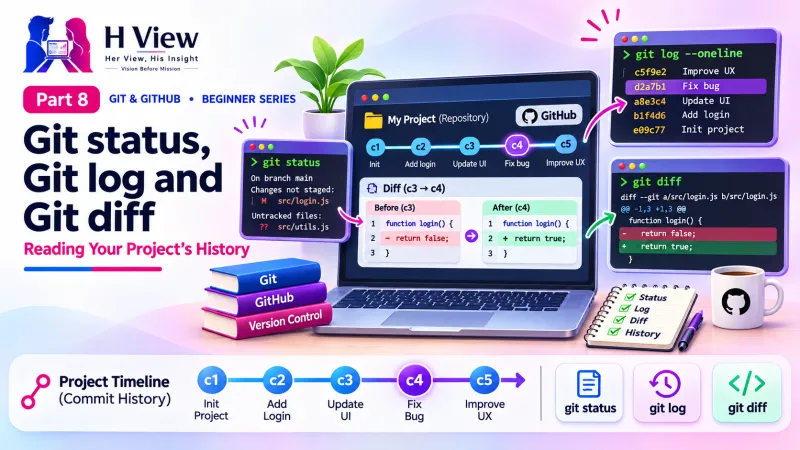
Git status, Git log and Git diff: Reading Your Project's History (Part 8)
Three commands let you see everything about your project: git status for now, git log for the past and git diff for exact changes. Part 8 of our visual Git and GitHub series.
Use git status to see what has changed right now, git log to see the history of commits, and git diff to see the exact lines that changed. Together, these three read-only commands answer almost every "what happened to my project?" question, and they never change your files, so they are always safe to run.
Two weeks after her first commit, Sneha's uncle phoned: "The WhatsApp button on the bakery site has disappeared! When did that happen?" A month earlier, she would have panicked. This time she opened her terminal, typed three commands and found the answer in under a minute: the button vanished in Tuesday's commit "Redesign footer", when she accidentally deleted one line. In Part 7 you made your first commits. This Part 8 opens Module 3, the daily workflow, by teaching you the same detective skills Sneha used.
Your one-minute summary
- git status: the present, which files are changed, staged or new
- git log: the past, the list of commits with IDs and messages
- git diff: the details, line-by-line changes in red and green
- git diff --staged shows what is about to be committed
- git show <id> shows one commit in full
- All of these are read-only; they never change your files
What do git status, git log and git diff each do?
Think of them as three questions you ask Git. Each gives a different view of the same project.
Three questions, three commands
git status: "What is going on now?"
- Changed but not staged files
- Staged files ready to commit
- New untracked files
- Which branch you are on
git log: "What happened before?"
- Every commit, newest first
- ID, author, date, message
- Filter by date, person or file
git diff: "What exactly changed?"
- Line-by-line differences
- Red minus lines removed
- Green plus lines added
How do I read git status?
git status groups your files by the three areas from Part 4. Here is a typical reply, translated:
| Git says | Plain meaning | Area |
|---|---|---|
| On branch main | You are working on the main line | (branch) |
| Changes to be committed: modified: index.html | index.html is in the box, ready to commit | Staging area |
| Changes not staged for commit: modified: style.css | style.css is edited but not in the box yet | Working folder |
| Untracked files: about.html | A new file Git is not recording yet | Working folder |
| nothing to commit, working tree clean | Everything is saved; no changes since the last commit | All in sync |
git status -s gives a compact view: M means modified, A means added (staged new file) and ?? means untracked. The column the letter is in tells you if it is staged (left) or not (right). Also readYour First Git Repository and First Commit, Step by Step (Part 7)→
How do I read git log?
git log lists commits from newest to oldest. The full version shows a lot; these variations are more useful day to day:
| Command | What you see |
|---|---|
git log | Full details: ID, author, date, message for every commit (press q to quit) |
git log --oneline | One line per commit: short ID and message |
git log --oneline --graph | Adds a drawing of branches and merges (useful from Part 12) |
git log -5 | Only the last 5 commits |
git log --since="2 weeks ago" | Commits from the last two weeks |
git log --author="Sneha" | Commits by one person |
git log -- index.html | Only commits that changed index.html |
Sneha's investigation, step by step
How do I read git diff?
git diff shows line-by-line changes. Which changes it compares depends on how you call it, and this trips up many beginners.
Which diff do I need?
How do I read a diff's output?
A diff looks scary until you know its parts. Here is a small example after changing a heading:
| Diff line | Meaning |
|---|---|
diff --git a/index.html b/index.html | Which file is being compared |
@@ -3,1 +3,1 @@ | Where in the file: around line 3 |
-<h1>Hi, I am Sneha</h1> | Removed line (red) |
+<h1>Namaste, I am Sneha</h1> | Added line (green) |
Git does not "edit" lines; it shows a changed line as one removal plus one addition. That is why a small change appears as a red line followed by a green line.
What is HEAD?
HEAD is Git's name for "where you are now", usually the latest commit on your current branch. HEAD~1 means "one commit before HEAD", HEAD~2 means two before, and so on. So git diff HEAD~1 compares your files with the previous commit.
Counting back from HEAD
Can I see history without the terminal?
Yes, and the visual views are excellent for beginners:
- VS Code: the Source Control panel shows changes; click a file for a side-by-side diff. The Timeline section in the Explorer lists commits that touched the open file.
- GitHub Desktop: the Changes tab is your
git statusandgit diff; the History tab is yourgit log. - GitHub.com: after pushing (Part 9), click the commit count on your repository page to browse history, and click any commit to see its coloured diff.
Same information, four places
How do these commands help in real life?
- "The site broke after lunch." Run
git diffto see everything you changed since the last commit. - "When did the WhatsApp button disappear?" Run
git log -- index.htmland check commits that touched the page. - "What did the AI tool change?" Run
git diffafter the AI finishes, before you commit. - "Am I about to commit something silly?" Run
git diff --stagedbefore every commit.
Before Part 9, make sure you can
- Explain the three groups git status shows
- Use
git log --onelineand quit a long log with q - Tell the difference between
git diffandgit diff --staged - Read a diff: red minus removed, green plus added
- Say what HEAD and HEAD~1 mean
Her View
There is something reassuring about being able to see exactly what changed. It replaces the anxious "what did I do?" feeling with calm facts. When something goes wrong, you are no longer guessing; you are reading. That shift, from panic to investigation, is one of the quiet gifts Git gives every learner.
 Also readHow to Install Git, VS Code and GitHub Desktop on Windows and Mac (Part 5)→
His Insight
Make git diff --staged your last step before every commit. It takes five seconds and catches stray debug lines, accidental deletions and files you did not mean to include. Combined with clear commit messages, it turns git log into a reliable record you can search months later.
H View Verdict
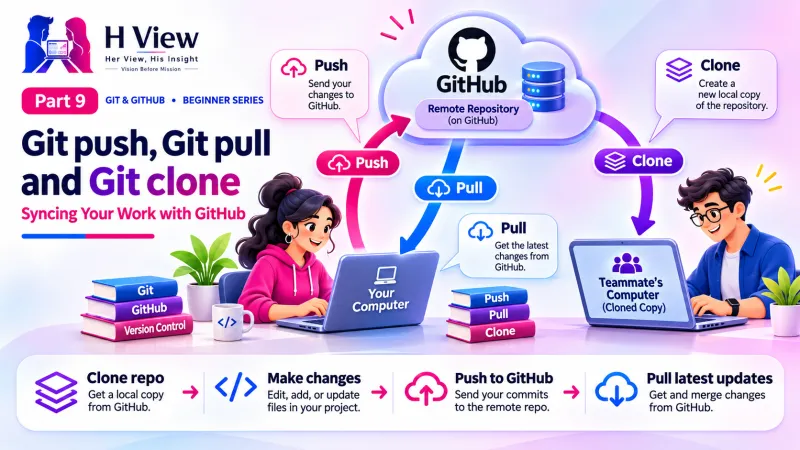
git status shows the present, git log the past and git diff the details. They are safe, read-only and useful every single day. Now that you can read your history, it is time to share it. In Part 9, we connect your project to GitHub with git push, git pull and git clone.
Self-assessment: test yourself
Ready? Tap an option for each question. You will see right away whether you got it, with a short explanation, and your score at the end. Take your time, and try again as often as you like.
Status, log and diff quiz: 10 questions
1. Which command shows what will go into your next commit?
- git diff
- git diff --staged
- git log
- git push
git diff --staged compares the staging area with the last commit.
2. How do you exit a long git log?
- Ctrl + S
- Press q
- Close the laptop
- Type exit()
Git's viewer quits when you press q.
3. "Untracked files" in git status means
- Deleted files
- New files Git is not recording yet
- Files on GitHub
- Staged files
Untracked files are new; use git add to start tracking them.
4. What does HEAD usually point to?
- The first commit
- The latest commit on your current branch
- GitHub's server
- The staging area
HEAD means "where you are now", normally the newest commit on your branch.
5. Do git status, git log and git diff change your files?
- Yes, always
- Only git diff
- No, they are read-only
- Only on Windows
These commands only show information; they are always safe.
6. Which command lists only commits that changed index.html?
- git status index.html
- git log -- index.html
- git diff --all
- git add index.html
Adding -- and a file name filters the log to that file.
7. What does HEAD~1 mean?
- The first commit ever
- One commit before the latest
- The next commit
- A branch name
The tilde counts back from HEAD.
8. In git status -s, what does ?? mean?
- Git is confused
- Untracked file
- Merge conflict
- Deleted file
?? marks files Git is not tracking yet.
9. Which command shows one commit's message and its changes together?
- git show <id>
- git init
- git clone
- git branch
git show displays a commit with its diff.
10. In GitHub Desktop, which tab is the equivalent of git log?
- Changes
- History
- Settings
- Repository
The History tab lists your commits.
Frequently asked questions
Why does git diff show nothing?
Either there are no changes, or your changes are already staged. Try git diff --staged or git status.
How do I see who changed a specific line?
Use git blame filename. It shows the commit and author for each line. On GitHub, open the file and click "Blame".
Can I search commit messages?
Yes. git log --grep="contact" lists commits whose messages contain "contact".
Is git log the same on GitHub?
The history is the same once you push. GitHub shows it on the commits page with a friendlier layout.
git status so often that it becomes a reflex. Next up, Part 9: git push, git pull and git clone, syncing with GitHub.H View stories follow our editorial policy. Spotted an error? Tell us and we will correct it.
Rate this article
One tap is enough. No comment needed.
Was this article helpful?
Your answer goes straight to our editors.








Comments0
No comments yet. Start the conversation.